09: Wired, Radio, Wifi (IoT)
Tic Tac Toe
The game state above represents the game state of the server. Our inspiration for this project started with the idea of building a game. We wanted two Arduino boards to connect to the same server and communicate with each other so two players could play tictactoe in real time.
Firebase Setup
We set up Firebase communication by following this tutorial: ESP32 Firebase Realtime Database tutorial.
One thing that took a lot of time was trying to use a hotspot instead of the lab's dedicated Wi-Fi network. Make sure you USE THE DEDICATED NETWORK
Finding the Web API Key (challenge)
It was a little hard to find the WebAPI key. Here are the steps to find it:
- Go to Project Settings.
- Under the General tab, click Add web app (if no web app exists).
- Copy the apiKey value from the generated config code.
Wi-Fi / Firebase Config
The project uses Wi-Fi plus Firebase credentials in code. I've redacted sensitive values here and here is the structure (all defined in the tutorial):
// -------------------- Wi-Fi / Firebase --------------------
#define WIFI_SSID "MAKERSPACE"
#define WIFI_PASSWORD "********"

#define Web_API_KEY "YOUR_WEB_API_KEY"
#define DATABASE_URL "https://your-project-default-rtdb.firebaseio.com/"
#define USER_EMAIL "your-email@example.com"
#define USER_PASS "********"
Server Data Structure
game
  board: "---------"
  currentTurn: "X"
  gameOver: false
  version: 0
  winner: "-"
Each turn, we read the board string from the server, parse it, and run Arduino-side game logic to determine turns, wins, and end state. Easier to keep this logic on the Arduino. We write updates back to Firebase using the same library from the tutorial
Optimization Notes
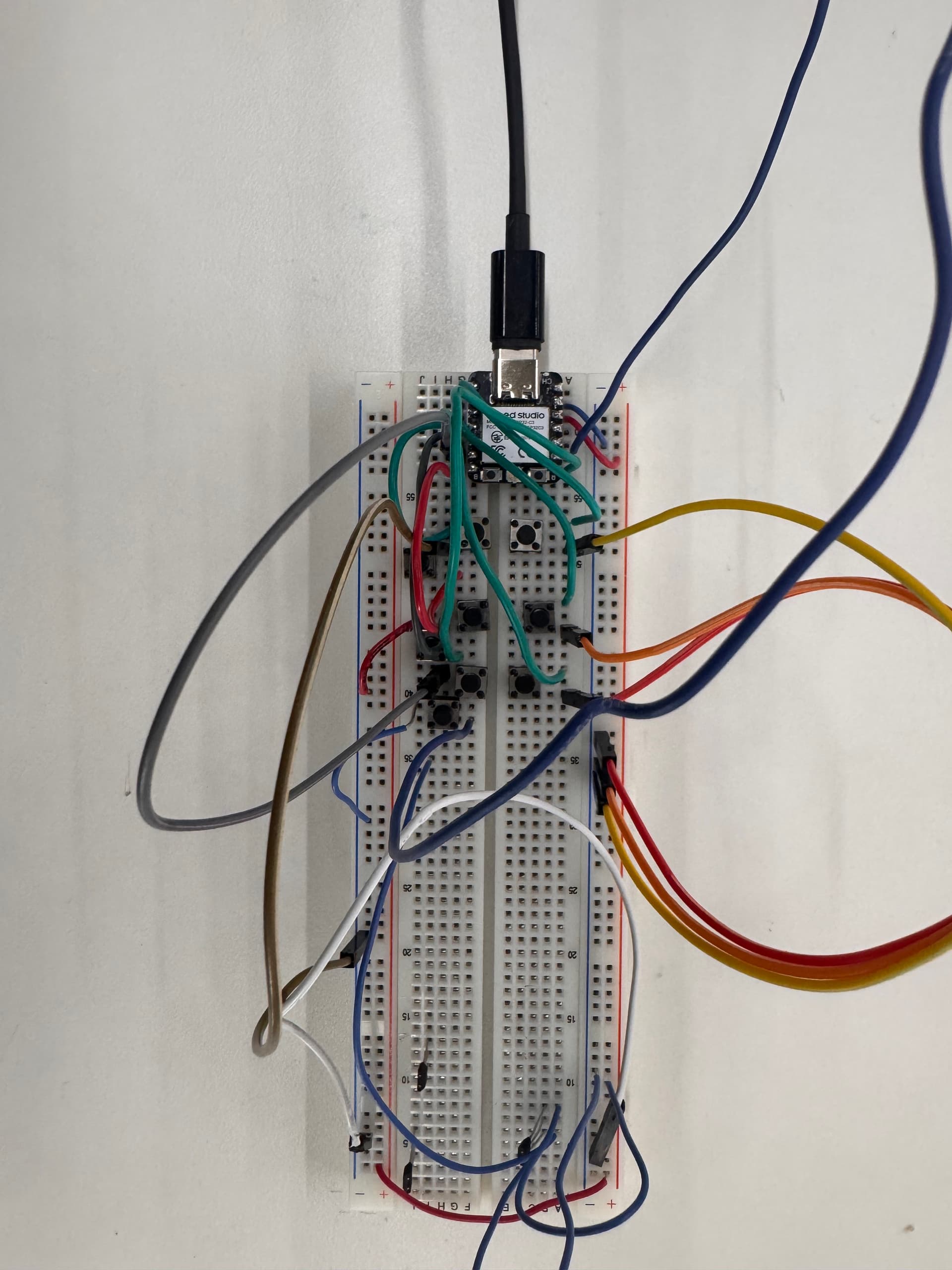
An optimization we used was wiring multiple buttons to the same ground wire, which reduced wiring complexity. A cool stretch goal would be to make a custom PCB and then solder everything together
Interactive Demo
Wiring
Code
The Arduino source is in week09_tictactoe_firebase.ino